mejl


Manage your views
Reorder, rename, recolor, or remove the views in your sidebar without leaving Mejl.
Updated August 6, 2026
01
Change the order of a view
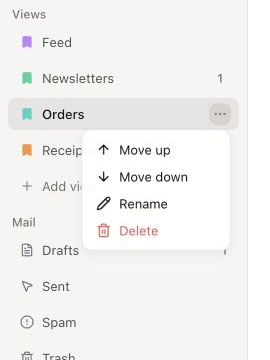
Drag a view up or down to place it where you want in the sidebar. You can also select its three-dot button and use Move up or Move down.
02
Rename a view
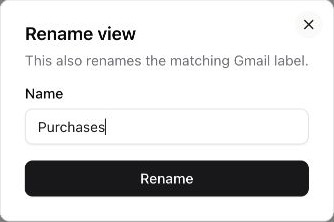
Select Rename, enter the new name, then confirm. Mejl also renames the matching Gmail label.
03
Change its color
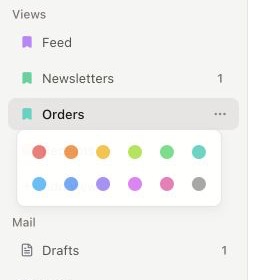
Select the colored bookmark beside a view, then choose another color. The color helps you recognize the view and does not change its email.
04
Delete a view
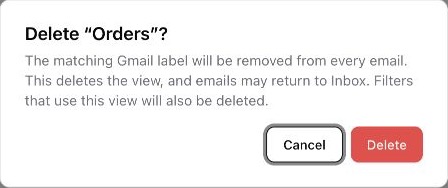
Select Delete from the three-dot menu and review the confirmation carefully. Deleting a view removes its Gmail label and any filters that use it, but it does not delete the email itself.
Good to know
Views are backed by Gmail labels. Renaming or deleting a view makes the matching change in Gmail too.
Related guides
Still need help?
If a guide doesn’t cover what you’re after, send us a message and we’ll get back to you.